Stop Manually Uploading Product Photos: How to Automate 4K E-Commerce Image Upscaling in Claude and Cursor with MCP
Manually downloading supplier photos, uploading them to web upscalers, and renaming files breaks down at scale. Learn how the Model Context Protocol (MCP) lets Claude Desktop and Cursor batch-upscale e-commerce catalogs to 4K, auto-save locally, and prevent expired CDN links.
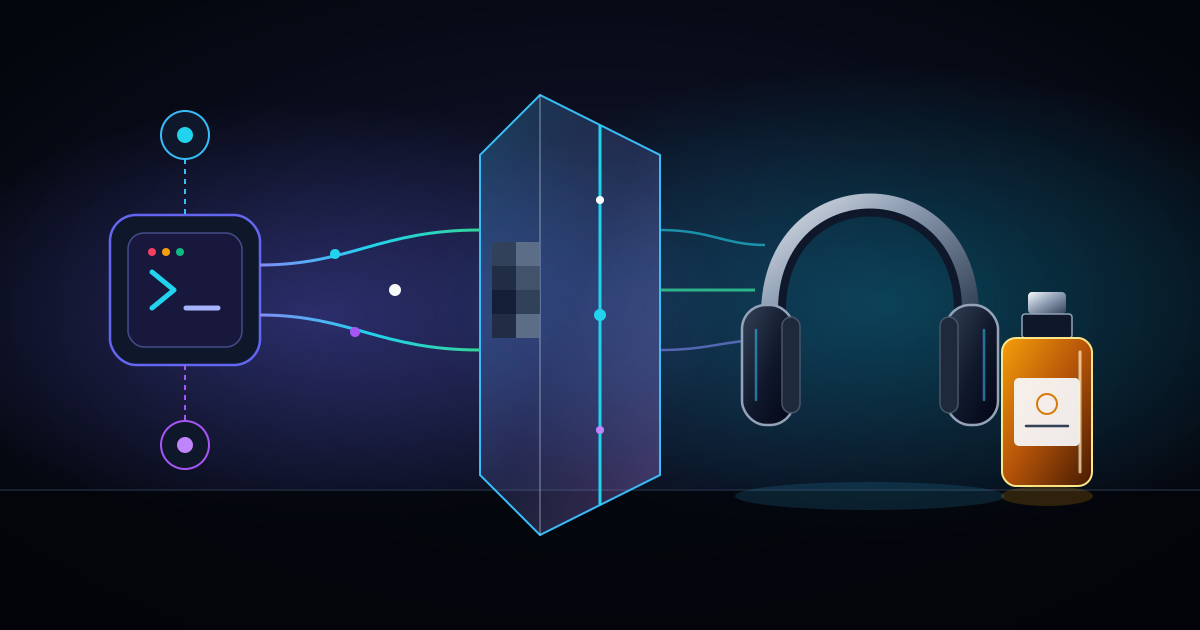
If you build or manage e-commerce storefronts in 2026, you already know how fast a 40-SKU supplier drop turns into an entire afternoon of tedious browser clicks. You download a folder of 600 x 600 pixel vendor JPEGs, drag them into a browser-based upscaler, wait for each tab to finish, rename the downloaded files so they do not overwrite each other, and move them back into your repository or Shopify catalog.
That manual loop is fine for three hero images, but it falls apart the moment you are migrating a catalog, launching a seasonal collection, or building a custom Next.js storefront in Cursor. Now that the Model Context Protocol (MCP) has become the standard bridge between AI assistants and external tools, you can hand that entire image-upscaling pipeline directly to Claude Desktop, Cursor, or Antigravity IDE and let your agent process and save 4K assets straight into your project folder.
Why manual product image workflows break down for modern stores
Product photography is still the single biggest conversion lever on a product detail page. In Baymard Institute's large-scale e-commerce usability research, 56% of shoppers immediately start exploring product images as their very first action after landing on a product page. Yet 25% of e-commerce sites still fail to provide images with sufficient resolution or zoom depth (14% serve visibly low-resolution photos, and 11% prevent shoppers from zooming far enough to read ingredient labels or inspect material texture).
Teams rarely ship blurry product images because they do not care. They ship them because fixing 50 to 500 supplier images by hand creates massive operational friction:
- Context switching kills velocity: Jumping back and forth between your IDE or product spreadsheet, a web-based image enhancer, and your local Downloads folder adds dozens of manual steps per SKU.
- Custom API glue scripts rot quickly: Writing a one-off Python or Node.js script to call a REST upscaling API means handling multipart uploads, async job polling, retry logic, rate limits, and local file naming yourself.
- Agentic storefronts are raising the bar: E-commerce platforms themselves are moving to agent-driven workflows. As documented in Shopify's Agentic Commerce and Shop MCP documentation, Shopify now exposes hosted MCP servers so AI agents can search catalogs, build carts, and complete checkouts. Keeping your catalog imagery clean and high-resolution has to move at the same automated speed.
What is the Model Context Protocol (MCP) for e-commerce teams?
According to the official Model Context Protocol documentation, MCP is an open-source standard (governed under LF Projects, LLC) for connecting AI applications to external data sources, tools, and workflows. The specification compares MCP to a USB-C port for AI applications: instead of building a custom integration for every combination of AI assistant and SaaS tool, a service exposes one MCP server, and any compatible client (including Claude, ChatGPT, Visual Studio Code, Cursor, and Antigravity IDE) can use it immediately.
Under the hood, local developer MCP servers typically run over the stdio transport defined in the MCP 2026-07-28 stdio transport specification. Here is what happens in the background when you ask your AI assistant to upscale a product photo:
- Subprocess launch: Your MCP client (such as Claude Desktop or Cursor) starts the MCP server as a local child process on your machine.
- Structured JSON-RPC communication: The client sends newline-delimited JSON-RPC tool requests over standard input and reads structured JSON-RPC responses and progress notifications from standard output (while keeping diagnostic logs isolated on standard error).
- Automatic tool discovery: As shown in the Cursor MCP documentation, once a server is registered in your editor or CLI configuration, the agent automatically discovers its exposed tools, parameter schemas, and constraints, so you can trigger multi-step workflows in plain English.
Four engineering traps when connecting AI image tools to an agent loop
Wiring an autonomous AI agent to a paid GPU image-upscaling API introduces four failure modes that do not exist when a human clicks a button in a web UI. Before you drop any image MCP server into your IDE, check how it handles each of these.
1. Ephemeral GPU CDN links breaking live storefronts
Most cloud GPU inference providers return a temporary signed delivery URL (`outputUrl`) that expires in 1 hour. If an AI agent simply returns that URL in chat and pastes it into your Shopify CSV, WooCommerce import, or Next.js catalog file, your entire storefront breaks 60 minutes later with 403/404 image errors.
A production-ready image MCP server must auto-download and persist every upscaled file directly to your local disk by default, using collision-safe naming so batch runs never overwrite `shoe-upscaled-2x.png` with another angle of the same SKU.
2. Exposing API credentials inside LLM prompt arguments
The MCP Security Best Practices specification emphasizes that MCP servers must verify all inbound requests on the server side rather than trusting arbitrary client inputs, and recommends running local servers over the `stdio` transport to restrict access strictly to the host client.
Passing API keys inside tool parameters exposes secrets to chat history, context logs, and untrusted product descriptions. Credentials belong strictly in server-level environment variables at launch, completely separated from the LLM's tool arguments.
3. Concurrent batch loops causing credit over-billing
When you ask Cursor or Claude to upscale 25 product images from a JSON catalog, modern agents often fire multiple tool calls in parallel. Without server-side atomic row locks on credit deductions, concurrent requests can trigger race conditions, over-bill your balance, or stall mid-batch without telling you how many credits remain.
4. Generic diffusion models hallucinating packaging labels
If an agent routes a 600px cosmetic bottle, supplement tub, or sneaker logo through a creative generative diffusion model, the model invents garbled gibberish text on the ingredient label or warps brand stitching. E-commerce agents need deterministic, edge-preserving super-resolution (like Real-ESRGAN) for packshots, paired with optional facial reconstruction (GFPGAN) strictly when upscaling on-model lifestyle apparel photos.
How to set up ProductImageUpscale AI MCP in Claude Desktop, Cursor, and Antigravity IDE
We built the official `productimageupscale-mcp` server specifically to solve those four production traps out of the box. It runs locally over standard stdio JSON-RPC from npm, requires zero manual boilerplate, and works across Claude Desktop, Cursor, Windsurf, Antigravity IDE, and the MCP Inspector.
Step 1: Generate your API key (Free tier included)
You do not need an enterprise contract to test the MCP workflow. Every ProductImageUpscale AI account starts on the Free plan with 5 monthly credits and includes full REST API and MCP server access with no credit card required.
- Sign up or log in at ProductImageUpscale AI.
- Open the API and MCP Integrations tab in your dashboard and generate your API key.
Step 2: Copy the 1-minute config into your AI client
Visit the ProductImageUpscale AI MCP Documentation to grab the exact one-click copyable configuration snippet for your client:
- Claude Desktop: Copy the Claude Desktop JSON snippet from our MCP setup guide, paste your API key into the environment variable field, and restart Claude Desktop.
- Cursor and Windsurf IDE: Open Cursor Settings > Features > MCP Servers > Add New MCP Server, paste the command and environment variable from our MCP setup guide, and verify the server's tools right from your editor or CLI (Cursor MCP Docs).
- Antigravity IDE: Copy the Antigravity IDE snippet from our MCP setup guide into your local MCP configuration.
Step 3: Understand the 4 tools, 2 resources, and 2 guided prompts
Once connected, your AI assistant immediately gains access to a focused, credit-safe toolset:
- `check_credits` tool (and `account://balance` resource): Lets your agent inspect your live credit balance, active plan tier (Free, Starter, or Pro), and cloud storage quota before spending a single credit on a batch job.
- `upscale_image` tool: Accepts a public HTTPS `imageUrl` (JPEG, PNG, or WebP, with an automated format guard that blocks animated GIFs before GPU billing), a `scale` multiplier (`2`, `4`, or `8`), a `materialType` preset, and an optional `outputPath`.
- `check_upscale_status` tool: Polls asynchronous GPU jobs via `imageId` and automatically triggers local download the moment rendering completes.
- `list_material_types` tool (and `docs://api-guide` resource): Exposes all four processing presets (`general` for Real-ESRGAN edge-preserving packshots, `model` for Real-ESRGAN plus GFPGAN face restoration at 2x and 4x, plus `fabric` and `leather` category presets) alongside Amazon 1,600px zoom and Shopify 2,048px catalog specs.
- Guided MCP Prompts (`upscale-product-image` and `batch-upscale-catalog`): Built-in prompt templates that guide your agent to verify balance first, select the right material preset, upscale every SKU, and output a clean summary of saved local file paths.
Three automated e-commerce workflows you can run today
Once your MCP server is connected, you never have to open a browser upload tab again. You can find ready-to-copy prompt templates on our MCP documentation page for three high-impact workflows:
- Pre-flight credit check plus on-model lifestyle enhancement: Your assistant checks your remaining balance via `check_credits`, upscales an on-model apparel photo at 4x with the `model` preset (activating GFPGAN face restoration), and saves the finished 4K file locally with its verified path.
- Direct-to-repo catalog batch upgrade: Inside Cursor, your coding agent reads supplier URLs from a local product JSON file, verifies credit availability, upscales each image at 2x or 4x with the `fabric` or `leather` preset, writes the files directly into your project's public products folder, and updates the catalog JSON paths automatically.
- Marketplace zoom compliance pass: Your assistant processes a batch of low-resolution supplier packshots at 4x with the `general` preset, saves them cleanly into your dedicated local folder, and verifies each output clears Amazon's 1,600px zoom threshold and Shopify's 2,048px Retina square standard.
Transparent unit economics for automated agent pipelines
Running an MCP agent over a real product catalog only makes sense if the pricing is predictable. Unlike GPU-minute APIs where a 4x or 8x upscale unexpectedly triples your bill, ProductImageUpscale AI pricing uses a flat 1 credit = 1 image upscale rule across 2x, 4x, and 8x, backed by Supabase atomic row-level locks so parallel agent loops can never double-charge your account:
- Free Plan ($0/month): 5 monthly credits, 100 MB storage (30-day rolling retention), and full MCP and REST API access so you can wire up Claude Desktop or Cursor and verify your workflow with zero commitment.
- Starter Plan ($9/month): 200 monthly credits ($0.045 per 4K upscale), 500 MB permanent storage, ideal for boutique Shopify stores and freelancers running weekly SKU drops.
- Pro Plan ($19/month): 2,000 monthly credits (under $0.01 per 4K upscale), 2 GB permanent storage, built for e-commerce agencies, headless storefront developers, and high-volume dropshipping catalogs. Subscribers can also add non-expiring top-up packs (100 credits for $15, or 500 credits for $35).
Frequently Asked Questions
Can I use the ProductImageUpscale AI MCP server on the Free plan?
Yes. Every free account includes 5 monthly credits with full MCP and REST API access, no credit card required. You can connect `productimageupscale-mcp` to Claude Desktop, Cursor, or Antigravity IDE right away, test `check_credits` and `upscale_image` on your real supplier photos, and upgrade to Starter ($9/month for 200 credits) or Pro ($19/month for 2,000 credits) when you are ready to run full catalog batches.Does the MCP server save upscaled product images to my computer automatically?
Yes. By default, `autoDownload` is enabled (`true`) on both `upscale_image` and `check_upscale_status`. Because cloud GPU output URLs expire after 1 hour and should never be hotlinked on live stores, the MCP server automatically downloads every completed image into a dedicated `Downloads/ProductImageUpscale/` folder with collision-safe filenames, or directly into any custom project directory specified via `outputPath`.How are API keys protected when using MCP?
Your API key is configured strictly as a local environment variable in your MCP host configuration and is never passed as a tool parameter in the LLM prompt. Combined with local `stdio` transport, this follows the MCP Security Best Practices for isolating local server credentials.Which `materialType` preset should my AI agent use for product photos vs. human models?
Use `general` (the default) for standard product packshots like electronics, cosmetics, jewelry, shoes, and home goods; it runs edge-preserving Real-ESRGAN super-resolution to keep typography and logos crisp without hallucination. Switch to `model` for lifestyle apparel photos featuring human faces so GFPGAN facial reconstruction runs alongside 2x or 4x upscaling (GFPGAN is automatically disabled at 8x).References
- Model Context Protocol: What is MCP? (2026-07-28): Official open-source documentation defining MCP as a standardized protocol connecting AI applications like Claude, ChatGPT, VS Code, and Cursor to external tools, data sources, and workflows.
- Model Context Protocol Specification: stdio Transport (2026-07-28): Official transport specification detailing how MCP clients launch local servers as subprocesses and exchange newline-delimited JSON-RPC messages over standard input and output while isolating logs to standard error.
- Model Context Protocol: Security Best Practices (2026-07-28): Official MCP security guidance covering local server isolation over `stdio`, inbound request verification, binding state to authenticated principals, and scope minimization.
- Shopify Dev Docs: Agentic Commerce and Shop MCP: Official Shopify developer documentation outlining Shopify's hosted Model Context Protocol servers (Shop MCP, Global Catalog, and Storefront Catalog) for AI agent product discovery, cart building, and checkout.
- Cursor Docs: Model Context Protocol (MCP): Official Cursor documentation detailing shared editor and CLI MCP configuration, server inspection commands, and automatic agent tool discovery.
- Baymard Institute: Ensure Sufficient Image Resolution and Zoom: Large-scale e-commerce UX benchmark finding that 56% of shoppers immediately inspect product images upon landing on a product page, while 25% of sites fail to provide sufficient resolution or zoom depth.
Ready to try it yourself?
Upscale your first product image free. No credit card required.
Get Started Free